Libreswan Documentation

Libreswan's Online Documentation
View the Project on GitHub libreswan/libreswan.github.io
SupportHOWTO
Additional ipsec.conf documentationAWS Mesh
brendans Road Warrior Setup at Home
Configuration examples
Confuse !?@: github wiki
Enterprise cloud encryption
Entropy matters
EoIP shared ethernet LAN using IPsec
High Availability Fallover VPN in AWS
Host to host VPN
Host to host VPN with PSK
Libreswan as client to a Cisco ASA or VPN3000 server
Microsoft Azure configuration
Migrate from IKEv1 DPD to IKEv2 LIVENESS
Opportunistic IPsec
Opportunistic IPsec using LetsEncrypt
Pluto and DNSSEC
Read status output
Route based VPN
SElinux and Labeled IPsec VPN
Subnet extrusion
Subnet to subnet using NAT
Subnet to subnet VPN
Subnet to subnet VPN with PSK
Unauthenticated Opportunistic IPsec
Using Apache to serve PKCS
Using NSS Hardware Tokens
Using NSS with libreswan
VPN server for remote clients using IKEv2
VPN server for remote clients using IKEv2 split VPN
Completed Projects
2026 RFC 9593 Announcing Supported Authentication Methods in IKEv22026 Improve the ACQUIRE to IKE policy lookup
2026 Add HOST TO HOST Support on BSD
2021 RFC 8420 Add EdDSA Signature Authentication Support to IKEv2
2020 Session Resumption
2020 IKEv2 Interop testing with OpenBSD
2020 IKE Intermediate Exchange
2019 Libreswan Opportunistic IPsec using LetsEncrypt
2018 RSA PSS Support in compliance with RFC 7427 and RFC 8247
2018 RFC 7427 Add ECDSA Signature Authentication Support to IKEv2
2018 RFC 5685 Redirect Mechanism
2018 Managing Interface
2017 TCP encapsulation of IKE and IPsec
2017 RFC 7427 Add Signature Authentication Support to IKEv2
2017 Postquantum Preshared Keys
IRC
Hacking
DocumentationGit, GitHub, and Pull Requests
Merging GitHub Pull Requests
Programming Conventions
Testing
DockerKVM
1. Setup The Host2. Configure Testing
3. Compile Libreswan
4. Test Libreswan
5. Accessing The Console
6. Maintenance and Internals
Bisecting
Debugging Pluto
Logging In Using SSH
Performance
Running A Custom Kernel
Running A Single Test
Running In The Background
Setup a Web Server
Testing Old Branches
Updating Test Results
Namespaces
Topology
Internals
3.14 X509Benchmarking and Performance testing
Cipher suites and algorithm support
Cloud OE ideas
Compiling with AddressSanitizer
Compliance of RFC 7427 Signature Authentication in IKEv2
Coverity
Cryptographic Acceleration
Developer links strongswan android
Discouraged or forbidden C functions
IKEv2 Child SA
IKEv2 CP and EAP support
Introduction
Libreswan xfrm kernel support
Logging cleanup
New OE
Pluto
Pluto packet processing
Proposed ipsec ca command
Retransmit timings
Road Map
SAref code
Setting up system for debug logging
stf status
Testing 2017 Next Generation
Unbound
Uncrustify
Use Cases and Requirements document for ECC ECDSA support
Use Cases and Requirements document
XFRM Interface Development Notes
XFRM pCPU
XFRM pCPU RSS
Security
Crypto boundary and certificationLibreswan and Heartbleed
Libreswan and TunnelCrack
Reporting a Vulnerability
Vulnerabilities
Obsolete HOWTOs
IKEv1 XAUTH with FreeOTP and FreeIPAIKEv1 XAUTH with Google Authenticator One Time Passwords
Route based VPN using VTI
Testing Namespace
VPN server for remote clients using IKEv1 with L2TP
VPN server for remote clients using IKEv1 XAUTH with Certificates
VPN server for remote clients using IKEv1 XAUTH with PSK
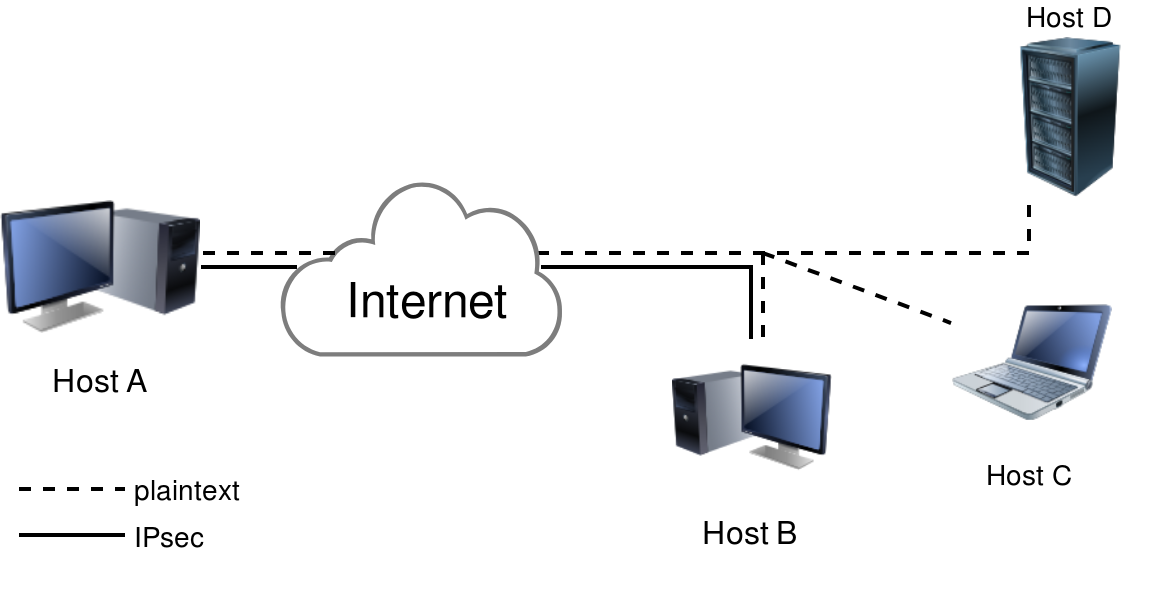
This example sets up an IPsec connection between two hosts. The names and IP addresses used here are also used in our testing infrastructure. You will find a lot of configuration examples there as well. In this host-to-host example, we will create an IPsec VPN between Host A (“west” on 192.1.2.45) and Host B (east on 192.1.2.23)
Libreswan uses the terms “left” and “right” to describe endpoints. We will use “left” for west and east for “right”. We will be using raw RSA keys, and not pre shared keys (PSK) because it is safer (and easier!)
Generate a raw RSA host key on each end and show the key for use in our configuration file. Note that the raw key blobs span several lines. We reduced them here for readability. Ensure they appear on a single line in your ipsec.conf.
On the host called west, run:
[root@west ~]# ipsec newhostkey
Generated RSA key pair with CKAID f8d0e8766b60eaf5a10d2a220955bb1688415e6e was stored in the NSS database
[root@west ~]# ipsec showhostkey --left --ckaid f8d0e8766b60eaf5a10d2a220955bb1688415e6e
    # rsakey AwEAAb42X
    leftrsasigkey=0sAwEAAb42X0gw [....]
Repeat this on the other host, in our case east, using “right” instead “left”:
[root@east ~]# ipsec newhostkey
Generated RSA key pair with CKAID b95477d03cbe3118c50fb433a2740ec52f3fb2d8 was stored in the NSS database
[root@east ~]# ipsec showhostkey --right --ckaid b95477d03cbe3118c50fb433a2740ec52f3fb2d8
    # rsakey AwEAAesFf
    rightrsasigkey=0sAwEAAesFfVZqFzRA9F [...]
[!NOTE] On embedded hardware with low entropy, the process of generating a RSA new key can take minutes.
[!NOTE] On older versions of libreswan, the newhostkey command had to be called with “–output /etc/ipsec.d/your.secret”, and the main secrets files /etc/ipsec.secrets has an include statement for /etc/ipsec.d/*.secret. On current libreswan versions, the secrets file(s) are only used for PSK’s and XAUTH passwords.
# /etc/ipsec.conf

conn mytunnel
    leftid=@west
    left=192.1.2.23
    leftrsasigkey=0sAwEAAb42X0gw [....]
    rightid=@east
    right=192.1.2.45
    rightrsasigkey=0sAwEAAesFfVZqFzRA9F
    authby=rsasig
    # use auto=start when done testing the tunnel
    auto=add
You can use the identical configuration file on both east and west. The hosts will each auto-detect whether they are “left” or “right”.
First, ensure ipsec is started:
ipsec setup start
Then ensure the connection loaded:
ipsec auto --add mytunnel
And then try and bring up the tunnel on one of the hosts. It should not matter which one you use.
ipsec auto --up mytunnel
If all went well, you should see something like:
# ipsec auto --up  mytunnel
002 "mytunnel" #1: initiating v2 parent SA
1v2 "mytunnel" #1: initiate
1v2 "mytunnel" #1: STATE_PARENT_I1: sent v2I1, expected v2R1
1v2 "mytunnel" #2: STATE_PARENT_I2: sent v2I2, expected v2R2 {auth=IKEv2 cipher=AES_GCM_16_256 integ=n/a prf=HMAC_SHA2_512 group=MODP2048}
002 "mytunnel" #2: IKEv2 mode peer ID is ID_FQDN: '@east'
003 "mytunnel" #2: Authenticated using RSA
002 "mytunnel" #2: negotiated connection [192.1.2.45-192.1.2.45:0-65535 0] -> [192.1.2.23-192.1.2.23:0-65535 0]
004 "mytunnel" #2: STATE_V2_IPSEC_I: IPsec SA established tunnel mode {ESP=>0xESPESP <0xESPESP xfrm=AES_GCM_16_256-NONE NATOA=none NATD=none DPD=passive}
If you want the tunnel to start when the machine starts, change “auto=add” to “auto=start”. Also ensure that your system starts the ipsec service on boot. This can be done using the “service” or “systemctl” command, depending on the init system used for the server.
You can generate some traffic, for example using the ping command, and then use the ipsec trafficstatus command to confirm it was encrypted:
[root@west ~]#  ping -n -c 4 192.1.2.23
PING 192.1.2.23 (192.1.2.23) 56(84) bytes of data.
64 bytes from 192.1.2.23: icmp_seq=1 ttl=64 time=0.443 ms
64 bytes from 192.1.2.23: icmp_seq=2 ttl=64 time=0.403 ms
64 bytes from 192.1.2.23: icmp_seq=3 ttl=64 time=0.450 ms
64 bytes from 192.1.2.23: icmp_seq=4 ttl=64 time=0.437 ms
--- 192.1.2.23 ping statistics ---
4 packets transmitted, 4 received, 0% packet loss, time 3028ms
rtt min/avg/max/mdev = 0.403/0.433/0.450/0.023 ms
[root@west ~]# ipsec trafficstatus
006 #2: "westnet-eastnet-ipv4-psk-ikev2", type=ESP, add_time=1561671961, inBytes=336, outBytes=336, id='@east'